
Monetization Magic

Colorado Website Development

  • Home
    • Blog
  • Business Coaching
    • Action Strategy Session
    • Coaching Call Prep Form
    • Monetization Mastermind Table
    • Platinum Inner Circle
  • Services
    • Back Up and Website Maintenance
    • Hosting
  • Done For You
    • Small Business Quick Start
    • Website Development
      • Website Portfolio
      • Our Process
    • Advertising Maintenance
    • Video Web Commercials
      • Video Portfolio
  • About
  • Coaching Call Prep Form
  • Free Resources
  • Upcoming Classes
  • Media
  • Contact

How to Successfully Post a Link in a WordPress Blog

By SoftwareGirl


I came across this question out on Yahoo answers and thought I would take a moment to answer it here.  Link is a short version of the actual word hyperlink.  Links are often used in blogs to help the reader to jump to another area of interest either inside or outside of the blog itself.  A link can be attached to either text or images.

To Create a Text Link

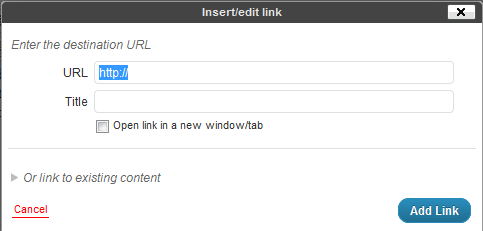
Creating a text link is quite easy.  If you can highlight text and type, you have the major skills necessary mastered already!  Choose the word or phrase you wish to convert to a link and highlight the word or phrase by clicking and holding down the left mouse button at the beginning of the text and dragging the mouse to the end of the text and releasing the mouse button.  The text is now highlighted.  Next click on the insert/edit link button in the toolbar above the post.

Then type the URL (address) to the destination for the link and click on the blue Add Link button.
To Create an Image Link

Creating an image link is similar to creating a text link.  Once you have the image embeded into your post, simply click on the image and you will see two buttons appear.  One looks like a mountain and is used to edit the image, we’ll be using this one.  Click on the button with the mountain on it and you should see a pop-up that looks like this:
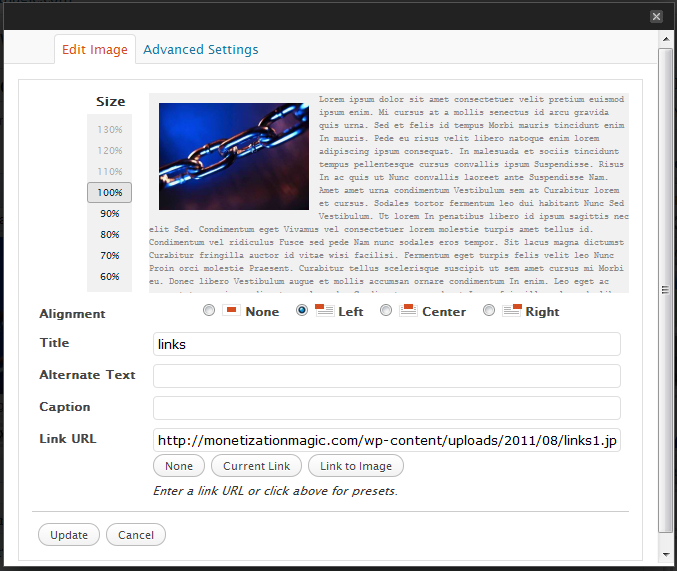
In the “Link URL” field, delete the destination link of the current image and type the destination link and click on the Update button.  You can now update your post by clicking on the blue update button.

Testing your links is a good idea so that you can ensure that they will take your reader to the proper place.  Once, you’ve updated your post, simply open a separate browser window, go to the post with the link you want to test and click on the link and see where you’ve been taken by the link.  If you arrive at the correct place, you have place the link correctly.  If you do not arrive at the correct place, go back into your post, then look for errors in the destination URL.  Once the errors are found and corrected, click on the Update button again and retest.  Repeat until done.


Enhanced by Zemanta

Filed Under: Creating Content Tagged With: Clients, Hyperlink, Hypertext, Image, Uniform Resource Locator, Web page, WWW, Yahoo! Answers

Firefox Extension That Enhances Your Blog

By SoftwareGirl

Are you working smarter or harder?   Well today I am going to show you how to blog smarter. What does this mean exactly?  I have always found that being organized have having my tools close at hand has always increased my productivity.

I just started using a fantastic little FREE Firefox addon that automatically gives me related links, photos, articles and tags as I type my blog posts.  I use it to enhance the quality content and tags in my blog.

No more searching for related information to add to my posts. It appears right on my wordpress admin post page. Let me show you…

How to I get this? Easy! Head on over to Zemanta.com and click on the Download Zemanta Firefox Extension button.

How I Use Zemanta

I do not use the “Links” they provide in my blog posts. Why? It creates “leakage” on my site.  I prefer for my readers to stay on my blog and read me articles.  I have no control over what someone else puts on their site.  I do use them to find more information to write about.

Secondly, I only use photos that are either licensed as Public Domain or I create them myself. Why? Because if they are Public Domain I don’t have to post a link to the source like I would with the other images.

As far as articles go, it is great that they do research for you and give you different articles related to your blog post. I often visit them and read what others are saying about the topic. It’s a treasure trove of ideas for your own blog.

I LOVE that they give me tags for my blog posts. I just need to click on the related tags and it does the work for me.  This is awesome!  I’ve been using tags since the beginning; but I always felt like I was overlooking some tags…but which ones?  Now I know and can include them with the clickety-click of my mouse!

The BEST Part

Let me tell you the BEST part of Zemanta. Above all, this is the main reason I use it… It leaves a little symbol at the bottom of your blog posts that looks something like this:

This little button gets me more backlinks than articles posted to an article directory!  However, this only works if you have really high quality blog content.

How it works: Someone visits your blog and falls in love with your posts. He or she clicks on the REBLOG button and is presented with a choice of different quotes from your blog post that they can post on their blog in exchange for a backlink to your post.  You get to contribute to someone else’s success and you receive a back link in return.  That’s a win/win situation!

This does not mean they get to copy your post. They can only choose one paragraph to quote and you gain a backlink and some free publicity and advertising for your blog.

So if you don’t use Zemanta for any other purpose, use it as link bait! Get your backlinks and increase your search engine rankings.

What are Backlinks and Why are They Important?

Google and other search engines often base your rankings depending on how popular your blog is. The more backlinks you have the more important your blog looks. You want to gain as many HIGH QUALITY backlinks as you can.

Filed Under: Creating Content Tagged With: Add-ons, blog, Blogger, Clients, Firefox, Google, Zemanta

Copyright © 2026 · Powered by Monetization Magic · Log in