
Monetization Magic

Colorado Website Development

  • Home
    • Blog
  • Business Coaching
    • Action Strategy Session
    • Coaching Call Prep Form
    • Monetization Mastermind Table
    • Platinum Inner Circle
  • Services
    • Back Up and Website Maintenance
    • Hosting
  • Done For You
    • Small Business Quick Start
    • Website Development
      • Website Portfolio
      • Our Process
    • Advertising Maintenance
    • Video Web Commercials
      • Video Portfolio
  • About
  • Coaching Call Prep Form
  • Free Resources
  • Upcoming Classes
  • Media
  • Contact

How to Successfully Post a Link in a WordPress Blog

By SoftwareGirl


I came across this question out on Yahoo answers and thought I would take a moment to answer it here.  Link is a short version of the actual word hyperlink.  Links are often used in blogs to help the reader to jump to another area of interest either inside or outside of the blog itself.  A link can be attached to either text or images.

To Create a Text Link

Creating a text link is quite easy.  If you can highlight text and type, you have the major skills necessary mastered already!  Choose the word or phrase you wish to convert to a link and highlight the word or phrase by clicking and holding down the left mouse button at the beginning of the text and dragging the mouse to the end of the text and releasing the mouse button.  The text is now highlighted.  Next click on the insert/edit link button in the toolbar above the post.

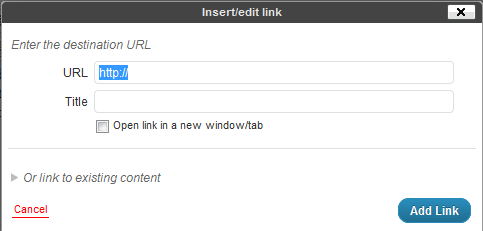
Then type the URL (address) to the destination for the link and click on the blue Add Link button.
To Create an Image Link

Creating an image link is similar to creating a text link.  Once you have the image embeded into your post, simply click on the image and you will see two buttons appear.  One looks like a mountain and is used to edit the image, we’ll be using this one.  Click on the button with the mountain on it and you should see a pop-up that looks like this:
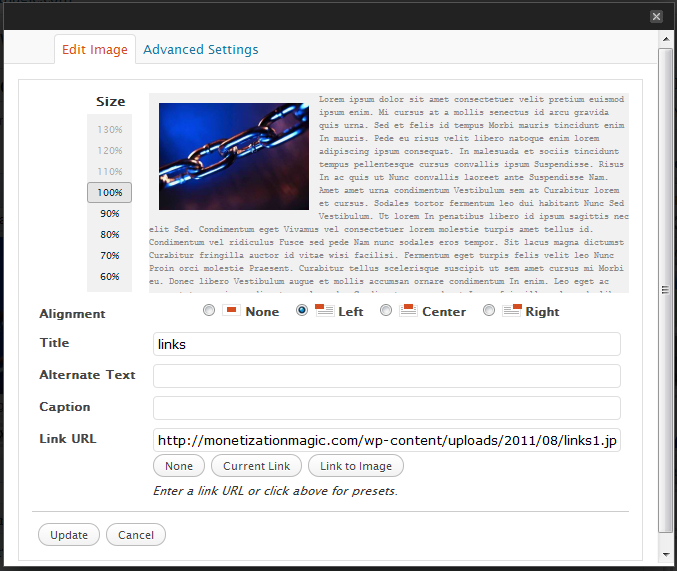
In the “Link URL” field, delete the destination link of the current image and type the destination link and click on the Update button.  You can now update your post by clicking on the blue update button.

Testing your links is a good idea so that you can ensure that they will take your reader to the proper place.  Once, you’ve updated your post, simply open a separate browser window, go to the post with the link you want to test and click on the link and see where you’ve been taken by the link.  If you arrive at the correct place, you have place the link correctly.  If you do not arrive at the correct place, go back into your post, then look for errors in the destination URL.  Once the errors are found and corrected, click on the Update button again and retest.  Repeat until done.


Enhanced by Zemanta

Filed Under: Creating Content Tagged With: Clients, Hyperlink, Hypertext, Image, Uniform Resource Locator, Web page, WWW, Yahoo! Answers

YOUR Website Advertising 123 Easy!

By SoftwareGirl

A great way to monetize your website is to sell advertising space.  You can easily create and sell 125×125 pixel ads and place them on your website using nothing more than Microsoft Paint and some HTML code.  You do NOT need fancy software to put the ads on your website.  A typical ad price would be $50 per month for a 125×125 ad.  This is 123 Easy.  If you can cut and paste you can do this!

1.  Create the Ad

Likely the advertiser has their own 125×125 already created and you can simply upload that; however in the event that they don’t, you can create an ad for them and charge them appropriately.

2.  Create the Ad Structure

The simplest ad structure that you can use is a table.  The table contains at least one row and cells.  Each ad image is uploaded into the cell of the table and a link pointing to the destination is attached to the image.  The basic structure code is as follows:

<table>

<tr><td>Ad Image 1</td><td>Ad Image 2</td></tr>

</table>

Calm down!  It’s a little bit of code and the good part is that WordPress will create the rest for you.  You can copy and paste, right?  Simply copy the code above and put it into a temporary post using the HTML tab. Find the HTML tab in the image below:


We won’t be keeping the post, we’ll just use it for a working area for the moment.

Click back on the Visual tab and you will see a basic table.  It will look like this:

Ad Image 1 Ad Image 2

Don’t worry about the size as it will self adjust as we move forward.  Breathe!  The rest is just copy and paste.  Highlight the words “Ad Image 1” in the first cell of the table.  Click on the Upload/Insert button:

Search for the ad you which to insert and then click on the button to upload the image.  Then click on the Insert into Post button.  Once the image has been inserted, click on the image and click on the Link button and type in the destination for the ad image.

If you happen to have 2 ads, simply repeat the process to get the 2nd one into place.  Once the ads are in place and linked, click on the HTML tab again.  You’ll see a lot of HTML code back there.  You created that!  Now we’re going to select all of it (you can hold down the CTRL key and click on the A key if you have a PC).  Next we will copy it in preparation for step 3.

3. Place the Ad Structure Into a Text Widget

Open a text widget and simply paste the code into the lower area.  You will not need a title.  Go ahead and click on the blue Save button at this point.  Open up another browser window and admire your work!  Next, click on each of the ads to ensure that they link to the proper destination.

That’s all there is to it!

Enhanced by Zemanta

Filed Under: Training Tagged With: Character encodings in HTML, Cut copy and paste, Data Formats, HTML, Image, JavaScript, Markup Languages, Website

Copyright © 2026 · Powered by Monetization Magic · Log in


