Monetization Magic

Colorado Website Development

  • Home
    • Blog
  • Business Coaching
    • Action Strategy Session
    • Coaching Call Prep Form
    • Monetization Mastermind Table
    • Platinum Inner Circle
  • Services
    • Back Up and Website Maintenance
    • Hosting
  • Done For You
    • Small Business Quick Start
    • Website Development
      • Website Portfolio
      • Our Process
    • Advertising Maintenance
    • Video Web Commercials
      • Video Portfolio
  • About
  • Coaching Call Prep Form
  • Free Resources
  • Upcoming Classes
  • Media
  • Contact

Archives for August 2011

How to Successfully Post a Link in a WordPress Blog

By SoftwareGirl


I came across this question out on Yahoo answers and thought I would take a moment to answer it here.  Link is a short version of the actual word hyperlink.  Links are often used in blogs to help the reader to jump to another area of interest either inside or outside of the blog itself.  A link can be attached to either text or images.

To Create a Text Link

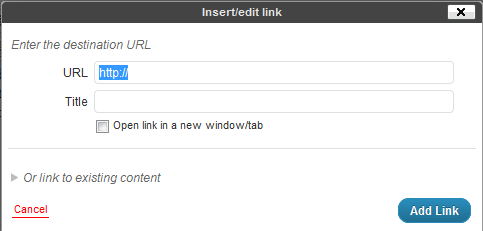
Creating a text link is quite easy.  If you can highlight text and type, you have the major skills necessary mastered already!  Choose the word or phrase you wish to convert to a link and highlight the word or phrase by clicking and holding down the left mouse button at the beginning of the text and dragging the mouse to the end of the text and releasing the mouse button.  The text is now highlighted.  Next click on the insert/edit link button in the toolbar above the post.

Then type the URL (address) to the destination for the link and click on the blue Add Link button.
To Create an Image Link

Creating an image link is similar to creating a text link.  Once you have the image embeded into your post, simply click on the image and you will see two buttons appear.  One looks like a mountain and is used to edit the image, we’ll be using this one.  Click on the button with the mountain on it and you should see a pop-up that looks like this:
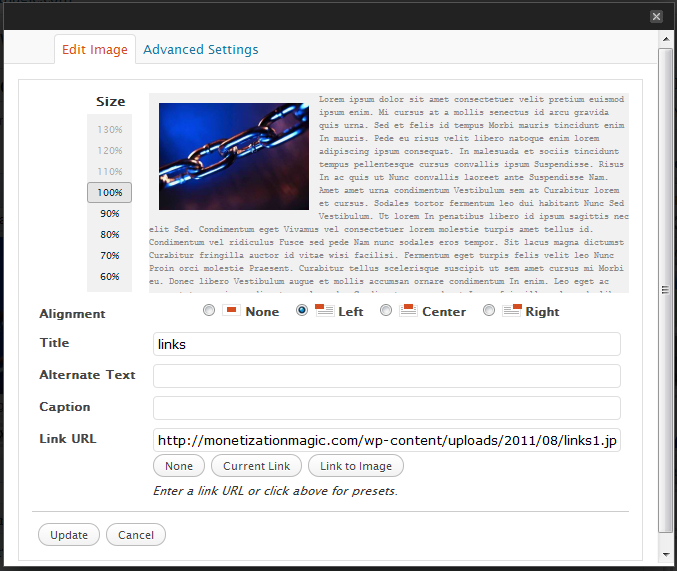
In the “Link URL” field, delete the destination link of the current image and type the destination link and click on the Update button.  You can now update your post by clicking on the blue update button.

Testing your links is a good idea so that you can ensure that they will take your reader to the proper place.  Once, you’ve updated your post, simply open a separate browser window, go to the post with the link you want to test and click on the link and see where you’ve been taken by the link.  If you arrive at the correct place, you have place the link correctly.  If you do not arrive at the correct place, go back into your post, then look for errors in the destination URL.  Once the errors are found and corrected, click on the Update button again and retest.  Repeat until done.


Enhanced by Zemanta

Filed Under: Creating Content Tagged With: Clients, Hyperlink, Hypertext, Image, Uniform Resource Locator, Web page, WWW, Yahoo! Answers

7 Essential Pages to Market Products

By SoftwareGirl


Online entrepreneurs appear to take many roads to get to the same place which is an eventual sale.  If you’re an online entrepreneur who is just beginning, this can seem like an overwhelming task.  In actuality it can be very simple.  This simple process can be used to market all online products from eBooks to Mastermind programs.  The 7 pages that you will need are as follows:

Feeder Page

The feeder page is actually a network of pages consisting of your Facebook Fan Page, Twitter, blog feed, Zemanta network, weekly newsletter, and face time with other people where you tell others what you have to offer.

Opt-in Page

Your opt-in page is where people sign up to get more information about your interesting value packed content or products.  You’ve seen this page and probably opted in to receive someone’s information or products.  Typically what you will see on this page is a field for your name, a field for your email address and a submit button of some flavor.

Video Page

The video page is a page where you tell the people who opted in to receive the information all about the valuable information that you have to offer.  These videos can offer training or even just feature the benefits of what they will receive when they perform certain tasks or purchase a certain product.  Typically there are 3-4 videos that are released one at a time which built interest and enthusiasm for your product.  The primary purpose for the video page is to provide valuable content 3-4 times in succession.  This builds rapport and trust with your prospect.

Sales Page

The sales page is the page that you display to tell your prospective customer exactly what they will receive, how they will receive it and when they can expect to receive the item or information.

Check Out

The check out page is a secured check out area where the customer is able to enter their payment information.  A lot of times, the payment processor will automatically have this page created for you and all you need to do is to specify some parameters for the payment page.

Upsell/Downsell

This is the page that you direct a customer to who is not ready to purchase your original item.  For instance, if the customer is interested in your Platinum Mastermind program and decides that $19,997 is not in his or her budget this month, you might offer your $497 home study program so that they have a different option for receiving your valuable content rather than having to do without.

Thank You/Bonus Page

The thank you/bonus page thanks those who chose to purchase your product and to provide any bonuses and one more instructional video with the last bit of valuable content for those who did and did not purchase your products.  This goes a long way towards building a relationship with your prospects and your customers.

It is best to create these pages on an entirely separate domain from your main blog/website so that your main blog/website is not weighted down with all the content from this product.  It will also give you the best framework so that you can do a product launch without overwhelming your audience with too many options.  You can always use a link from your main site to tie is all together if you wish.  You will want to use a separate series of 7 pages for each and every product that you offer.  The URL for the product webpages would correspond to the catchy title of your product.  You can also offer a forum or membership area for each product without worrying that the extra content/traffic will bring your website to its knees or crash entirely under the load.

Enhanced by Zemanta

Filed Under: Back End Store Tagged With: Content (media), Customer, E-book, Facebook, framework for marketing products online, marketing products online, product creation, Twitter, Uniform Resource Locator, Web feed, Zemanta

YOUR Website Advertising 123 Easy!

By SoftwareGirl

A great way to monetize your website is to sell advertising space.  You can easily create and sell 125×125 pixel ads and place them on your website using nothing more than Microsoft Paint and some HTML code.  You do NOT need fancy software to put the ads on your website.  A typical ad price would be $50 per month for a 125×125 ad.  This is 123 Easy.  If you can cut and paste you can do this!

1.  Create the Ad

Likely the advertiser has their own 125×125 already created and you can simply upload that; however in the event that they don’t, you can create an ad for them and charge them appropriately.

2.  Create the Ad Structure

The simplest ad structure that you can use is a table.  The table contains at least one row and cells.  Each ad image is uploaded into the cell of the table and a link pointing to the destination is attached to the image.  The basic structure code is as follows:

<table>

<tr><td>Ad Image 1</td><td>Ad Image 2</td></tr>

</table>

Calm down!  It’s a little bit of code and the good part is that WordPress will create the rest for you.  You can copy and paste, right?  Simply copy the code above and put it into a temporary post using the HTML tab. Find the HTML tab in the image below:


We won’t be keeping the post, we’ll just use it for a working area for the moment.

Click back on the Visual tab and you will see a basic table.  It will look like this:

Ad Image 1 Ad Image 2

Don’t worry about the size as it will self adjust as we move forward.  Breathe!  The rest is just copy and paste.  Highlight the words “Ad Image 1” in the first cell of the table.  Click on the Upload/Insert button:

Search for the ad you which to insert and then click on the button to upload the image.  Then click on the Insert into Post button.  Once the image has been inserted, click on the image and click on the Link button and type in the destination for the ad image.

If you happen to have 2 ads, simply repeat the process to get the 2nd one into place.  Once the ads are in place and linked, click on the HTML tab again.  You’ll see a lot of HTML code back there.  You created that!  Now we’re going to select all of it (you can hold down the CTRL key and click on the A key if you have a PC).  Next we will copy it in preparation for step 3.

3. Place the Ad Structure Into a Text Widget

Open a text widget and simply paste the code into the lower area.  You will not need a title.  Go ahead and click on the blue Save button at this point.  Open up another browser window and admire your work!  Next, click on each of the ads to ensure that they link to the proper destination.

That’s all there is to it!

Enhanced by Zemanta

Filed Under: Training Tagged With: Character encodings in HTML, Cut copy and paste, Data Formats, HTML, Image, JavaScript, Markup Languages, Website

New Merchant Credit Card Account Service

By SoftwareGirl


What is it?

A merchant credit card account is an account set up with a bank to process credit cards.  It allows a business owner to accept credit cards for purchases made in their business.  The account is completely PCI compliant so your information and your customers information is safe!

Who needs it?

If you own or will be owning a business, you will need a merchant credit card account.  The amount the bank charges for processing the credit cards can vary and some are quite expensive!  I am able to offer VERY competitive rates for this service.  If you are currently paying over 2%, we definitely need to talk!

How does this benefit you?

This benefits any business owner by lowering their overhead and increasing their profits.  I am also able to provide equipment and give you the ability to accept credit cards using just your cell phone, if you have a need for portability.  Doing business at the beach?  No problem!  This is a great option for those vendors that will be selling their products at the state fairs that are currently taking place across the country!

Does it really make a difference?

Yes!  For example, let’s say your current rate is 2.75% and let’s say your rate is reduced by .75% down to 2.0%.  A business with only $1000 in monthly sales would save $90 or 9% of their gross monthly sales in fees!  That can make or break many businesses today!  If you happen to be using PayPay and receiving a rate of 3% + $.30 on each transaction which is common, you’ll save even more!  Over the course of a year, your savings really add up!

Would you like to learn more?

I would love to explain to you how I can help you to retain more money in your business by getting a better rate on your credit card processing.  Simply fill out the form at http://monetizationmagic.com/merchant-credit-card-accounts and I’ll be in touch with you within 24 hours!

Enhanced by Zemanta

Filed Under: Services Tagged With: Business, Business and Economy, Card Processing, Credit card, Financial Services, iPhone, Merchant, Merchant Services

Copyright © 2026 · Powered by Monetization Magic · Log in